Feb 23, 2026
This article goes through how you can use Pandoc as a static site generator. I used this post as the basis of how I go about managing content on my site as of this writing, until I find something that suits my needs better.
Note that some of the naming and screenshots might not exactly match where this post is now since I've cleaned it up a bit. I still think the message is pretty clear and I'm not going to go back and change screenshots or code snippets. You'll figure it out. ;)
Static site generators can be fairly complicated to run. Even simple ones are more of a hop from plain and simple HTML; you might want something that can just generate you HTML instead from something that is more friendly to write in than markdown.
Pandoc is a well-known document converter - you've probably seen it before, even in passing, as it's used in a number of projects to generate documentation. In any case, you might not know that it can also generate HTML as well pretty easy, and given its built-in ability to do things like syntax highlighting for code examples, it can be a great option as a lightweight static site generator.
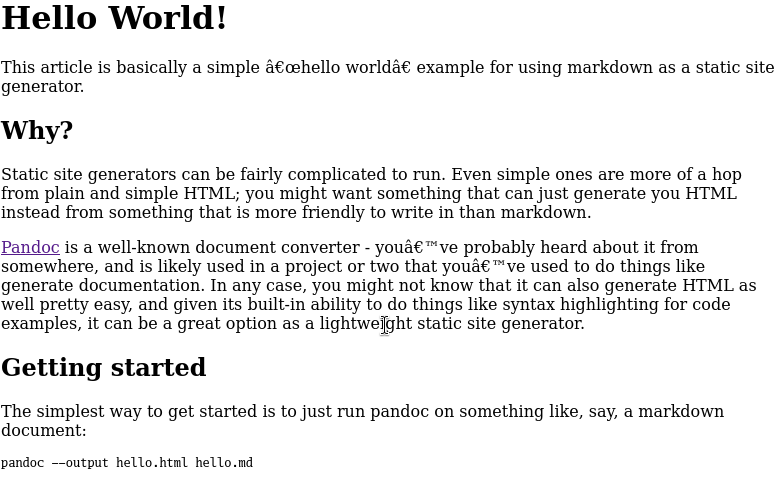
The simplest way to get started is to just run Pandoc on a markdown document:
pandoc --output hello.html hello.mdThis will generate something like:
We'll fix the broken quotes soon, but otherwise, we got a generated site from a markdown file, complete with our code example in pre-formatted text - pretty nice!
Let's work on making this a bit more complete.
First off, it's important to note that the generated HTML is actually not complete. Looking at the source:

We can see that Pandoc is not generating a syntatically correct HTML
document as it's missing the <!DOCTYPE html>
preamble, nor any of the typical <html>,
<head>, or <body> tags, going
straight into the document body. This is because Pandoc by default
creates document fragments to save space (and also not all
applications of Pandoc may need complete HTML documents).
So right off the bat, let's add --standalone to our
options:
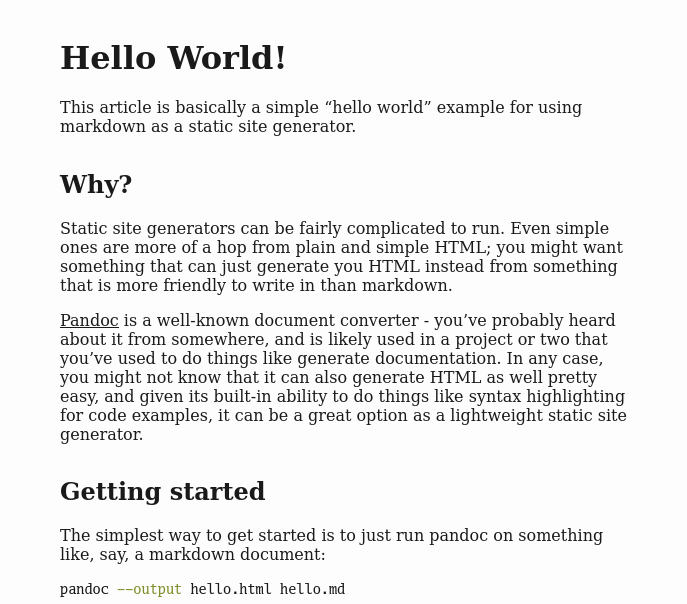
pandoc --standalone --output hello.html hello.mdWe can now see the much more complete HTML:

And, funny enough, our quotes are now fixed, and we've got a slew of other formatting!
Now that we've got that out of the way, let's see if we can continue to better tweak things to our liking.
One of the downsides of --standalone is that, in
addition to creating complete HTML documents, it will embed the
document's CSS as well. We might not want to do that, as it means that
we can't cache the CSS across pages.
The details as to why are in the Pandoc section on templates. Going from this, we can see that we can get the default HTML output template by running:
pandoc --print-default-template=htmlThis will dump the template, in which we can eventually see:
...
  <style>
    $styles.html()$
  </style>
$for(css)$
  <link rel="stylesheet" href="$css$" />
$endfor$
...
By consulting the Template
syntax section in the docs, we can see how variable expansion works
between $-delimiter pairs. Most notably:
styles.html()
partial, and:css
variables.If we look at the documentation for
--print-default-template, we can see that we can dump
partials as well, via --print-default-data-file:
pandoc --print-default-data-file=templates/styles.htmlSo this gives us the CSS, but in its templated form, of course.
Unfortunately, this is the first part of the process where we end up getting into heavier SSG territory, as there's really no way around the partial unless we manually edit the template. So, let's do that now.
pandoc --print-default-template=html > template.htmlAdditionally, we take the generated CSS from our current document,
and throw that in a style.css.
cat > style.css # Paste contents, then CTRL-DNow that are working off of templates and a central CSS, we can also take the chance to pare down the content and styles, which might have a lot of stuff that we don't necessarily want. This might include things like:
template.html file, and:The beauty is that if there is something that Pandoc was doing that you actually liked, you can always add it back later by just pulling it from the default template!
After making our changes, we now want to make sure we're rendering with the new template, and adding our CSS:
pandoc --standalone \
    --template template.html \
    --variable=css=./style.css \
    --output hello.html hello.md
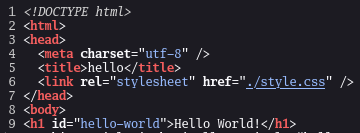
Let's look at our updated source:
In the CSS I've also made a bunch of changes including optional dark mode, so let's see how things look now.
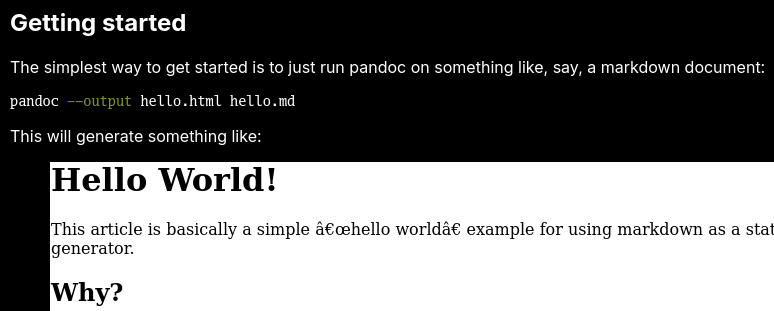
Funny enough, this is pretty much most of what is necessary to get things done with Pandoc. But let's play with a few other things here.
We've actually been using some basic syntax highlighting through most
of this (as the sh and html file types), but
the examples we've been using have not been really too demonstrative.
Let's try a C snippet and see what it can really do.
#include <stdio.h>

int main() {
    printf("Hello world!\n");
    return 0;
}
This gets generated like you would expect using the format specifier
in the pre-formatted text directive (so ```c).
There's nothing else really to it. Since we've already copied the CSS that we got generated for us directly, we don't really need to do anything else, but if we wanted a different style, we can do the following:
pandoc --list-highlight-stylesThis will give us the highlight styles available to us.
Unfortunately, pandoc --print-highlight-style does not
give us our style in CSS, so to extract the style, we have to generate a
single-page document again. Luckily, you can just output to stdout, so
you don't need to overwrite anything, or you can write to a different
file.
# Outputs to stdout if --output is not specified
pandoc --standalone --syntax-highlighting=breezedark hello.md
The CSS for syntax highlighting is usually displayed at the bottom of the style, with a comment denoting it.
Now, we can extract this code and add it to our main CSS, with a
@media selector that allows us to only include it in dark
mode:
@media (prefers-color-scheme: dark) {
    /* CSS for the breezedark highlight style */
}Now we get a little bit more into SSG territory by adding some layout to where we put things.
Note, however, that in contrast to more dedicated SSGs, where you put things is entirely up to you! So feel free to get creative, and start simple!
You can, say, put posts in src/posts, with content
associated with posts themselves in src/posts/images. This
allows you to keep relative references to them in your document.
Static content, like your CSS, can go in src/static, and
this directory can be mirrored to your output directory.
As mentioned a couple of paragraphs ago, since site structure is outside of the normal purview of Pandoc, this layout can grow with your needs. What will bring it all together is how you automate generation, which we cover in a few sections.
To start as well, you probably just want a simple landing page at
src/index.(html|md), mapping to /index.html in
the website output. This can be managed by Pandoc or not - again, you
have a lot of freedom here to set things up and lay it out the way that
you want. You may not get as much value out of content generation here,
especially depending on how often you write or otherwise update your
site.
Note that Pandoc can generate from HTML too! So you are not restricted to using Markdown here1.
You have a couple of options for navigation, as well:
src/templates/template.html template, or:templates/nav.html), and add
--include-before-body=templates/nav.html to your Pandoc
generation options.The latter can help especially if you are also managing your landing page or other non-post content with Pandoc, as you can just exclude it when you're generating this content respectively.
I use Nix to manage most of my
projects these days, which actually allows me to roll some of these
steps up pretty easy into scripts, which can be part of a
flake.nix file that is used in conjunction with direnv.
A complete solution would have some scripting to help re-generate your content, bundle it for distribution to a static hosting service, and possibly some tooling for live reloading.
Note for live reloading, you might find the following two tools useful:
Finally, note that a particular quirk of Pandoc is its insistence of translating straight quotes to curly ones. You might not like this.
This can be turned off by disabling the smart
extension:
# Note that "-smart" here is a suffix, which disables the extension from the
# specified input format (markdown)
pandoc --from=markdown-smart ...
Keep in mind that this does not affect pre-formatted text or code, so if this is your only concern, you don't necessarily have to worry about adjusting this.
Keep in mind though that HTML-to-HTML conversion is not the greatest, as specifically called out by Pandoc itself. YMMV.↩︎